Joomla account cleanup
This integration connects a Joomla website to a Tickessa project. You review and control an approved operation from its ticket. Joomla performs the supported steps locally; the ticket system receives an internal completion note and a separate reply draft.
The ticket workflow described here requires Tickessa 0.15.17 together with Joomla extension 0.6.2. The extension creates an encrypted restore point before changing data. A regular hosting backup and identity verification are still required.
Prerequisites
- Administrator access to Joomla and the ticket system.
- Plugin entitlement and a released Joomla ZIP in your customer account.
- Reachable HTTPS base addresses for both systems.
- An existing active support project.
- A backup of the Joomla database and files before cleanup.
The tested Joomla baseline includes Joomla 6.1.3, Kunena 7.0.8 and JomSocial 5.0.1. Other component versions may block execution. Community Builder is not supported in this beta. Additional data and unknown integrations are not automatically considered empty or cleaned.
1. Install the Joomla extension
Download the Joomla ZIP released for your account and verify its checksum. Install it in Joomla through System → Install → Extensions, then open Components → Tickessa account cleanup → Connection.
The Tickessa integration ships with the normal support package. No additional connection ZIP needs installing there. Joomla uses its existing database connection; no new database credentials are required.
2. Create the connection in the customer portal
Open My plugins → Joomla plugin and create a connection with a name, Joomla address and ticket system address. Enter the Joomla setup key in Joomla. Use the other key only in the ticket system. Both keys belong to the same connection and allow initial pairing within 24 hours.
3. Select the project in the ticket system
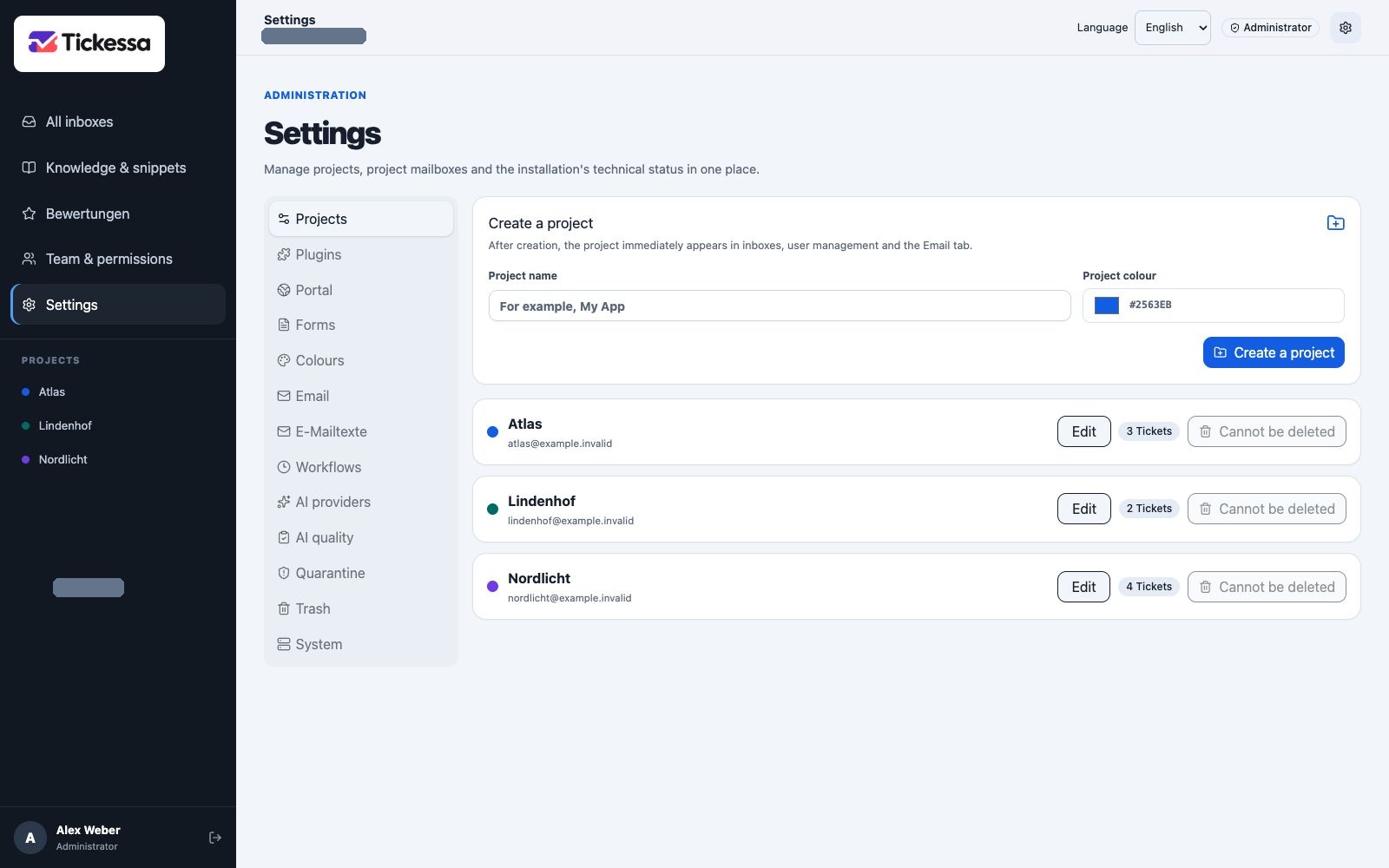
Each project has its own colour and groups tickets, mailboxes and knowledge.
- Open Settings → Plugins.
- Select Open settings on Joomla account cleanup.
- Open Connect another Joomla website. This section is already expanded when no connection exists.
- Select an active Assigned project.
- Enter the Ticket system setup key from your customer account.
- Choose Set up connection.
Setup does not require an existing ticket. After pairing, the website appears in the list. The project ID and name are confirmed in the customer portal, where the chosen project name replaces an unexplained internal number.
Existing connection settings
| Field or action | Purpose |
|---|---|
| Joomla website | Shows the connected website. |
| Connection status | Result of the last test, not continuous live monitoring. |
| Last check | Time of the last test attempt. |
| Last successful check | Most recent confirmed connection; retained after later failures. |
| Test connection | Uses the customer portal to verify a signed response from Joomla. Does not start cleanup. |
| Assigned project | Selects an active project from this Tickessa installation. |
| Save and sync project | Saves the assignment and sends its ID and name to the customer portal. |
| Manage in customer portal | Opens plugin details for downloads, update periods and connection management. |
After renaming a project, save its assignment again to update the name in the customer portal. A project change applies to new operations. Existing tickets and completed records keep their original project. An unfinished cleanup blocks changes; continue it in the current project first.
Understanding connection tests
| Result | Next step |
|---|---|
| Connection confirmed at last check | The test succeeded at the displayed time. |
| Connection set up, not checked yet | Choose Test connection. |
| Setup incomplete | Check that both systems were paired using their respective keys. |
| Check in progress | Wait at least 30 seconds before testing again. |
| Connection unavailable or no longer authorized | Check HTTPS availability, plugin activation and possible revocation in the customer portal. |
| Joomla website response could not be verified | Check the plugin version, paired website and system clock. Do not immediately create a second operation. |
Testing sends no ticket text and starts no deletion. A successful result confirms connectivity, not complete cleanup or approval of a target account.
Handle an operation in a ticket
- Open a ticket in the assigned project and verify the request and target account.
- Select the website in the Joomla section. Enter at least two characters to search by username, name or email address, then select the matching result. The technical user ID is used internally after selection.
- Choose Request preview. Review the identity, data and proposed mode.
- Review remaining posts, quotations, files and other data stores. Confirm only checks actually completed.
- Then choose Delete user data. Depending on the preview, this button starts either deletion or the required anonymisation. Use Resume cleanup for further steps. The red action appears above the detailed review result. Preview and review result can be collapsed and is initially closed when the ticket is opened again later.
- After technical verification, the operation stops at Cleaned – undo available. Check the forum, account, images and attachments. Undo changes restores every database row and local file changed by the operation from the encrypted restore point and verifies the original state.
- Choose Finalize permanently only after that check. This removes the restore point. The disabled button then turns green and reads Deleted, or purple and reads Anonymized when the Kunena history is retained. The internal note and customer draft become available only now.
- For an interrupted request, choose Retry interrupted request in the same ticket. If a Joomla processing step fails, the plugin automatically attempts to undo the complete operation. An unverified recovery is never reported as a successful completion.
- Review and edit the text before sending. Cleanup, finalization, email delivery and ticket status are separate actions; completion sends no customer reply and does not change the ticket status automatically.
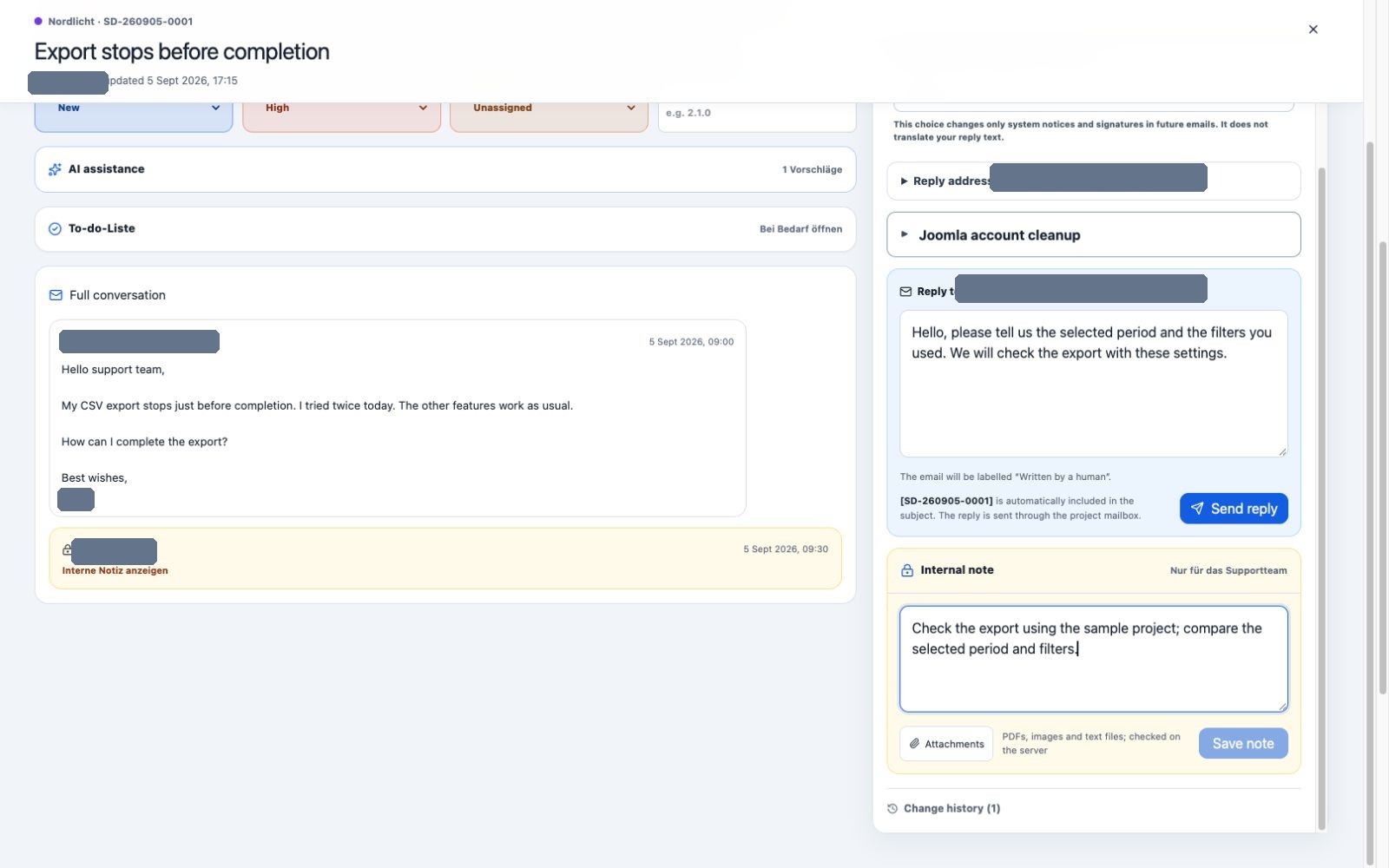
Customer replies and internal notes use separate editors. Reply language controls the signature and system notices.
Search is available with Tickessa 0.15.5 and Joomla account cleanup 0.5.0. It loads matching accounts in pages of up to 50 results and excludes protected administrator accounts. Search text and results are not stored in the ticket or customer portal. Only the selected user ID is sent to Joomla for the preview.
Cleanup scope
Without Kunena posts, the integration can remove the Joomla account and supported profile data. When posts exist, it blocks and anonymizes the account while preserving posts. Kunena attachments, private messages, avatars, signatures and profile data are removed automatically. Supported JomSocial profile data and clearly assigned local images are included; memberships and relationships are removed, while owned community content is detached from the account. Shared files remain physically present and their account reference is removed.
Technical incompatibilities such as a missing integration or an unqualified component version are reported as errors. External storage, additional extensions, quotations, backups and old unassigned files still require separate review. The extension does not promise complete cleanup of every data store.
Update, disconnect and restore
Update Tickessa through its regular updater and Joomla using its released package, then test the connection again. An expired update period alone does not revoke acquired usage.
Revoke the connection in the customer portal to stop further remote commands. This does not remove existing tickets. Uninstalling the Joomla extension does not restore deleted data and retains operation records for traceability. Handle unfinished operations before a planned uninstall and manage backups separately.